.png)
How to Replicate Secret Perks on New Indiegogo Platform
While the "Secret Perks" feature from the old Indiegogo platform is no longer available in its original form, creators can replicate its exclusivity by using a combination of "Product Groups" and "User Groups" on the new platform. This method allows you to offer specific products to select groups of backers, effectively creating an exclusive offering.
To replicate the old "Secret Perks" functionality, you will need to first define which backers you want to target and then create a product group with limited visibility.
1. Create a User Group & Import Backers
The first step is to create a "user group" which will contain the backers you wish to give exclusive access to your secret offer. This is the equivalent of deciding who would have received the "secret link" in the old system.

You can create groups here by clicking "+Add user group". After clicking the button, you’ll be able to set the group name. You can add as many groups as you like. You can also change group names, see group members, or delete a group here.
Next, you need to import the eligible users. To do that, go to Users and click "Import users":


The import file (standard .xlsx format is recommended) should look like this:

Please note that the highlighted row is only explanatory and should be removed before using the file for the import process.
If the "Pledge Amount" column has an amount higher than zero, then this amount will become a discount credit the backer will be able to use during the campaign.
If you want to add users who already exist within the project to a group, go to "Users", choose the people you want to add to the group by checking the boxes next to their names, and click the three dots icon:

Then, click "Set groups". You’ll see the following window:
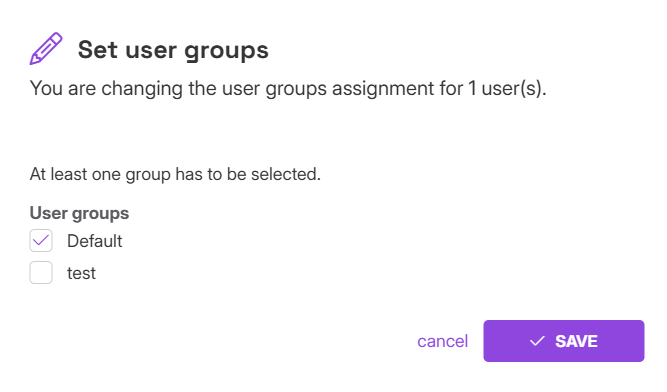
The platform will automatically choose the default group for the selected people. You can change it and click "Save". You can also add backers to multiple groups.
2. Create a Product Group
Next, you will need to create a "product group". This can be done by navigating to the Products tab in your project dashboard and selecting Product groups:

Here, you can create a new group and add the specific products or product sets that you want to be part of your exclusive offer.
Click "+ Add a product group" in the upper right to add a group:

You'll see the following window:
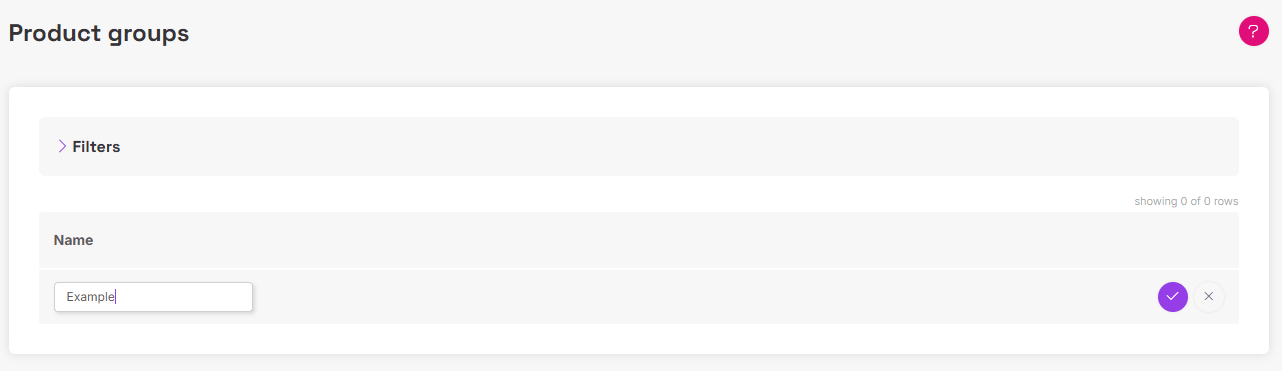
Enter the group name in the field below "Name" and click the pink button on the right to save it. You should see the following:
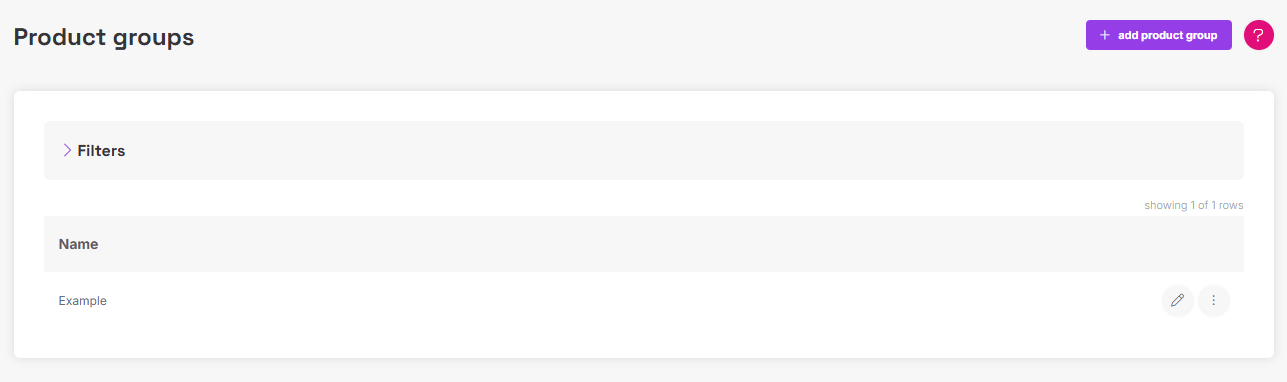
On the right, there are two buttons. Click the pencil button to edit the group name and the three-dot button to delete the group or view group details. When you click "View details", the following window will appear:
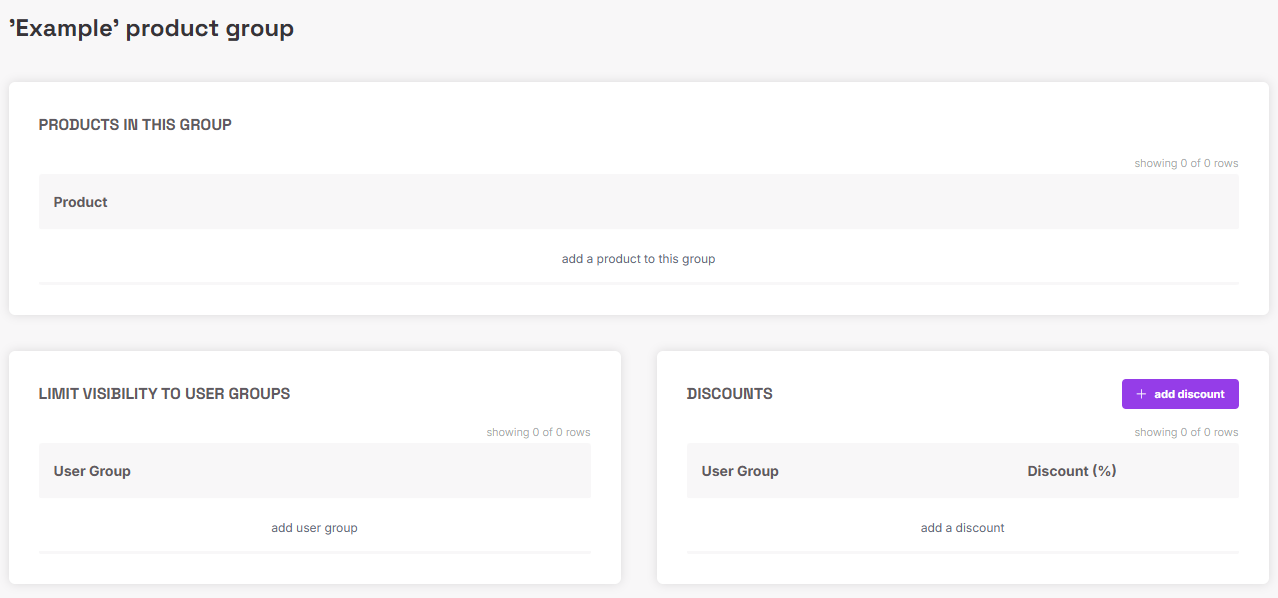
Next, add products to the group. Click "Add products to this group" and choose products from the list. The list contains all products you've created, including product sets.
3. Limit Visibility and Add Discounts
Once your product group is created, you can limit its visibility to the user group you created earlier. Under the "Limit visibility to user groups" section, you can add the specific user group. This ensures that only the backers within that designated group will be able to see and purchase the products in this product group:

Additionally, you can add a discount to the entire product group:

This is a great way to reward loyal backers or offer a special deal to a select audience, which was a common use for the old Secret Perks feature.
NOTE: Assuming the group discount is 10% - % discount in product groups is calculated based on the regular price. If a product has a discount price, the system will take the lower amount.